What do the built in tools do?
Apple's Live Text recognizes text in photos and in the camera view, and lets you act on what it finds: tapping a phone number offers actions including adding it to contacts, and email addresses and web links behave the same way. Photograph the card, tap the text, and choose the action.
On Android, the camera and photo tools offer similar text recognition, and contacts can be created and edited from the Contacts app or imported in bulk. Google's Contacts help covers adding and importing contacts on a computer, which is the practical route when you come back from an event with a stack rather than one card.
Neither route is perfect at reading unusual layouts, foil, reversed type or text over photographs, so expect to correct a field or two. That is still faster than typing everything.
What is the fastest workflow for one card?
Do it while you are still standing there, or within the hour.
- Photograph the card in even light, flat, filling the frame.
- Tap the number or email in the photo and add it to a new contact.
- Correct the name spelling and the company field by hand.
- Add the person's role in the notes, in your own words.
- Add where you met and the date.
- Add the one thing you agreed to do, if anything.
- Keep the photo of the card attached to the contact.
The last point matters. A photo of the card preserves details the text recognition missed, including any handwritten note on the back, which is often the most valuable part.
What about a stack from an event?
Batch it, and do it the same week. A pile of cards loses value quickly because the memory of each conversation fades faster than the paper does.
Photograph all of them in one session, laid out four or six to a frame if your tool can handle it, or individually if that is more reliable. Then sort into three piles before you enter anything: people you will contact this week, people who are worth a record, and people you will never contact. Enter the first two and recycle the third without guilt.
If you routinely collect dozens of cards, entering them into a spreadsheet and importing that file into your contacts is usually faster than doing them one at a time.
Does a QR code on the card help?
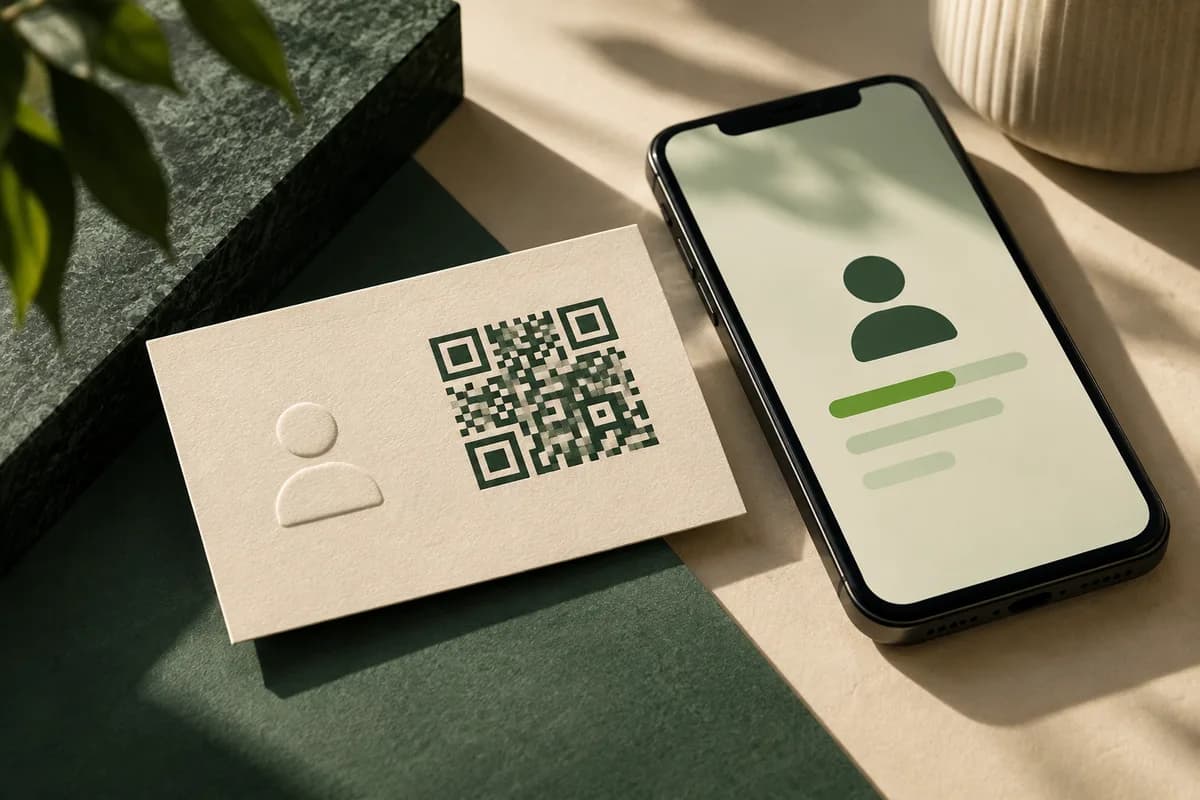
A vCard code does, when it is present and works. A card carrying a contact code saves the typing entirely, which is the strongest argument for putting one on your own card. The existing guide to vCard QR business cards covers what to encode.
Do not rely on it from the other direction. Most cards you are handed will not have one, and some that do point at a landing page rather than a contact file. Treat a code as a shortcut when it appears, not as your process.
What makes your own card easy to scan?
If you want people to get you into their phone, design for the camera as well as the eye.
- Set contact details in a plain, well spaced typeface at a readable size.
- Keep contact text on a plain background, not over a photograph.
- Avoid reversed text for the details, which text recognition reads less reliably.
- Avoid foil and heavy gloss on the contact block, which reflects into the lens.
- Keep the email address short and unambiguous.
- Put the country code on the phone number.
- Leave a writable matte area so people can note where they met you.
That last point is underrated. A card someone can write on is a card that carries its own context, which is exactly what the digital contact is missing.
Should you keep the paper?
Once the details are in your phone with a photo attached, usually not. Keep cards only where the physical object matters: a card you are going to hand to a colleague, one with a handwritten note you have not transcribed, or one you are keeping as a design reference.
A drawer of cards is not a network. A contact list with roles, dates and notes is.
What is the scanning checklist?
- Capture the card the same day, in even light, filling the frame.
- Use the phone's built in text recognition to create the contact.
- Correct the name and company by hand every time.
- Add role, place, date and any commitment to the notes field.
- Attach the photo of the card to the contact record.
- Batch a stack within the same week and sort before entering.
- Design your own card so the contact block is plain, matte and unreversed.
Frequently asked questions
How do I scan a business card into my phone?
Photograph the card flat in even light, then use the phone's built in text recognition. On iPhone, Live Text lets you tap a phone number or email in the photo and choose to add it to contacts. On Android, the camera and photo tools offer similar recognition, and contacts can be created or imported from the Contacts app.
Do I need a business card scanner app?
For occasional cards, no. The text recognition built into modern phones handles most well designed cards. A dedicated app is worth considering only if you collect cards in volume regularly and need them pushed into a customer record system, which is a workflow question rather than a scanning one.
What should I do with the pile of cards after an event?
Sort before you enter anything: people to contact this week, people worth a record, and people you will not contact. Photograph and enter the first two within the same week while you still remember the conversations, add a note about where you met and what you agreed, then recycle the rest.
How do I make my own card easier to scan?
Keep the contact block on a plain background in a well spaced typeface at a readable size. Avoid reversed text, foil and heavy gloss over the details, since both reflection and low contrast reduce recognition accuracy. Include the country code on the phone number and leave a matte area someone can write on.
Sources & specification notes
The references below support the relevant technical or product details in this guide. Examples and checklists are not claims of practical testing or universal supplier requirements. Confirm the current specifications for your chosen product before production.
- Apple Support: Use Live Text with your iPhone camera ↗
Live Text recognizes text in photos and the camera view and offers quick actions on phone numbers, email addresses and links, including adding them to contacts.
- Google Contacts Help: Add or move contacts ↗
Covers adding contacts and importing them, which is the practical route for entering a batch of cards after an event.