What do you need before printing checks from QuickBooks?
Get four things ready before you touch print setup. Most alignment trouble starts with a mismatch between the stock and the check type selected in QuickBooks, not with the printer.
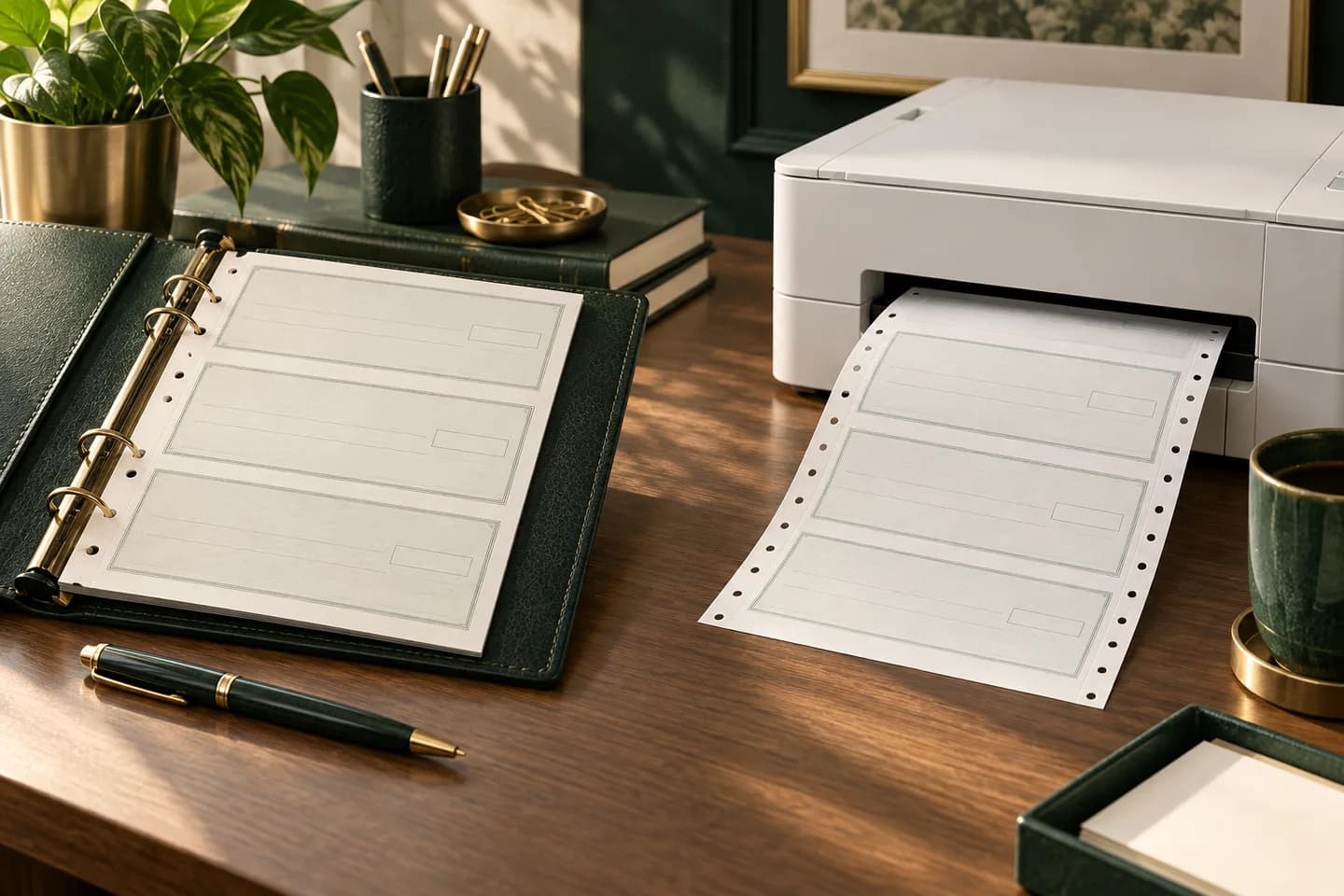
- Preprinted laser check stock with your bank details and MICR line already printed.
- The right check type: voucher (one check per page with stubs) or standard (three per page).
- A laser printer that feeds letter paper straight and consistently.
- A few sheets of plain letter paper for test prints.
QuickBooks Online offers only voucher and standard check types, and Intuit has said wallet checks work only in QuickBooks Desktop. QuickBooks Desktop also notes that it does not print MICR fonts, so the bank numbers must already be on your stock or come from a third party add on. If you are still choosing a format, our comparison of laser checks vs wallet checks explains which suits your volume.
How do you set up check printing in QuickBooks Online?
Intuit's steps start from the Expense transactions list. Menu names change from time to time, so follow the labels in your version if they differ slightly.
- Go to Expenses and Bills, then Expense transactions, and select Print checks.
- Select Print setup.
- Choose the check type that matches your stock: voucher or standard.
- Preview and print a sample on plain paper.
- Place the sample on top of a blank check and hold both up to a light.
- If the fields do not line up, drag the alignment grid or adjust it by hand, then print another sample.
- When the sample matches, select Yes, I'm finished with setup.
Intuit also says the latest Adobe Reader should be set as your browser's PDF reader for alignment to work properly. That single setting fixes a surprising number of misprints.
How do you print a batch of checks?
Once setup is done, you write checks or pay bills with Print later selected. Those checks show To print instead of a number and wait in the print queue.
- Open Print checks from Expense transactions.
- Choose the bank account the checks draw on.
- In Starting check number, enter the number printed on the first sheet in your printer.
- Tick each check you want to print.
- Select Preview and print, review the preview, then print.
- When QuickBooks asks, choose Yes, they all printed correctly, or Some checks need reprinting and enter the first bad check number.
The starting number step matters. QuickBooks assigns numbers in order from what you type, so if the printer holds check 1047 and you enter 1045, every record will be off by two.
What are the most common QuickBooks check printing problems?
| Symptom | Likely cause | Fix |
|---|---|---|
| Everything prints too high, low, left or right | Printer feed offset | Adjust the alignment grid in Print setup and test again |
| Text is slightly smaller and drifts toward the edges | PDF viewer or printer is scaling the page | Print at actual size or 100 percent, not fit to page |
| Payee and amount land on a stub | Wrong check type or wrong stock layout | Match voucher or standard to your stock |
| Check numbers in QuickBooks do not match the paper | Wrong starting check number | Enter the number on the first sheet in the tray |
| Alignment tool will not load or save | Browser PDF viewer in use | Set Adobe Reader as the browser PDF reader |
Scaling deserves special attention. Intuit's own help points to print scale settings in Adobe Acrobat and in printer drivers when misalignment persists. A page printed at 97 percent looks almost right, but a small shrink moves the amount box a noticeable distance by the bottom of the sheet.
How do you handle a misprinted check?
Treat the misprint as a used check, because it carries your real bank details. Write VOID in large letters across the face, keep it with your records, and note the number. Then tell QuickBooks that some checks need reprinting, starting from that number, so the software reprints on the next sheet and your sequence has no silent gap.
Never throw a misprinted check in the regular trash. Shred it after you have recorded it, or file it if your accountant wants voided checks kept. Our guide on how to void a check covers the paperwork side.
How is QuickBooks Desktop different?
QuickBooks Desktop offers three check styles in its printer setup: voucher, standard and wallet. The Desktop wallet style prints small checks on laser sheets and is different from a handwritten wallet checkbook. Intuit also advises unchecking the option to print your company name and address when your checks already have them preprinted, otherwise the name prints twice.
The alignment idea is the same: print on plain paper, compare against a blank check, adjust and repeat. Desktop users who need MICR printing on blank stock need a third party tool, as the Desktop article states.
Which check stock works with QuickBooks?
| Your setting | Stock to order | Notes |
|---|---|---|
| QuickBooks Online, voucher | Check on top voucher checks | One check and two stubs per sheet |
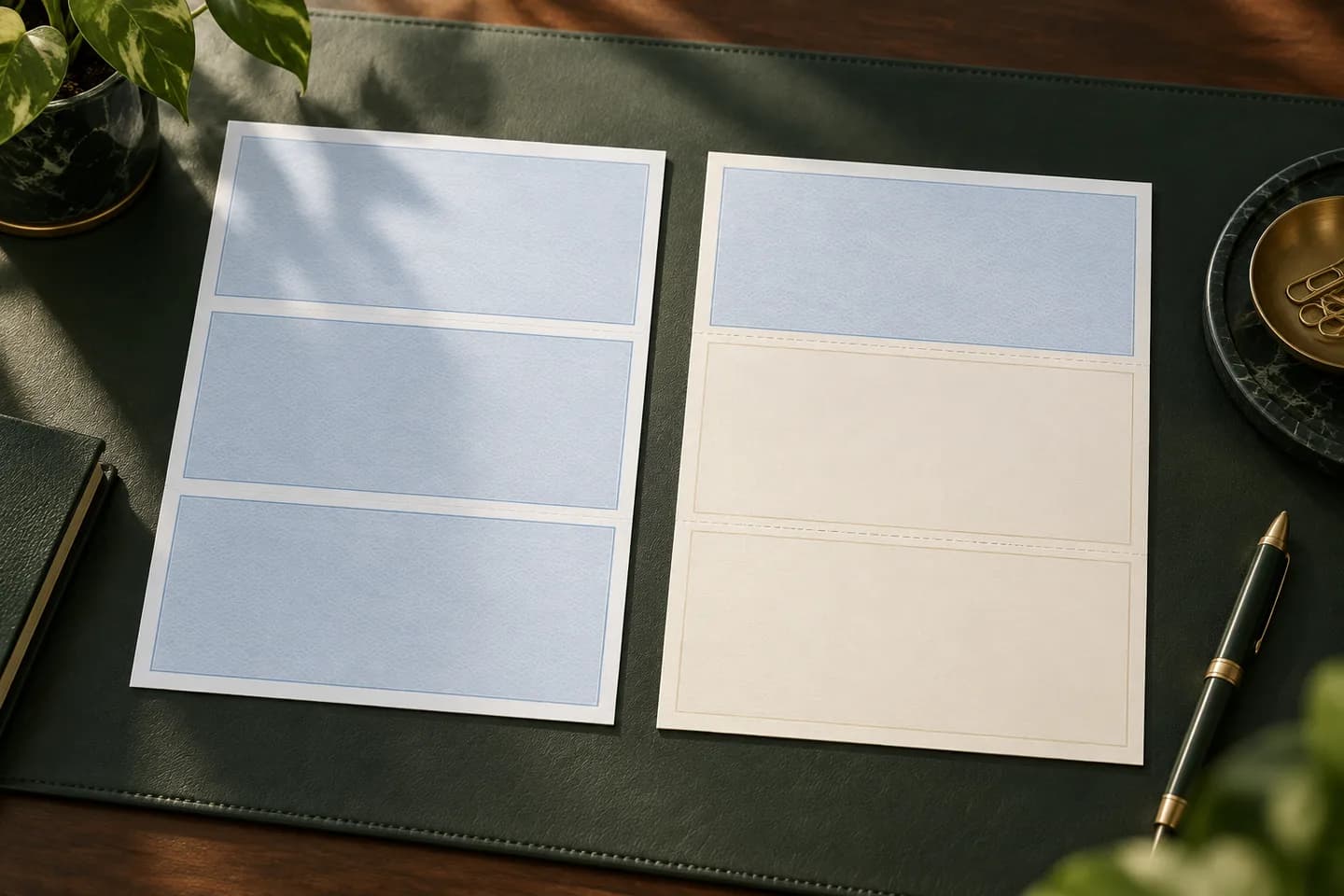
| QuickBooks Online, standard | Three per page laser checks | Three checks per letter sheet, not binder checks |
| QuickBooks Desktop, wallet | Laser wallet sheets | Not supported in QuickBooks Online |
| Either, with MICR toner | Blank check stock | Requires a MICR add on and bank approval |
QuickBooks Online does not print at the bottom of voucher sheets, according to Intuit staff replies in its community, so avoid check on bottom stock for it. For layout detail see our guide to check on top, middle or bottom, and before going the blank stock route, read our explainer on blank check stock and MICR.
What should you do after the first successful run?
Write down the settings that worked: check type, alignment position and printer tray. Load stock the same way every time, face and direction included. If you change printers or browsers, run a new plain paper test before printing real checks.
Keep enough stock for a few months. Voqado laser checks for QuickBooks start at $34.99 for 50 and come in multipurpose, payroll and accounts payable layouts. Standard orders take 2 to 4 business days of handling plus 5 to 8 business days in transit, so reorder before the tray runs low.
Frequently asked questions
Why are my QuickBooks checks printing misaligned?
Usually because of scaling, the wrong check type or a printer feed offset. Print at actual size rather than fit to page, confirm voucher or standard matches your stock, and set Adobe Reader as your browser PDF reader as Intuit recommends. Then print a plain paper sample, hold it over a blank check and adjust the alignment grid.
Can QuickBooks Online print wallet checks?
No. QuickBooks Online supports voucher and standard check types only. Intuit has stated that wallet checks are compatible only with QuickBooks Desktop. If you use QuickBooks Online and want smaller checks, you would need a handwritten wallet checkbook instead, which is written by hand and entered in QuickBooks separately.
Does QuickBooks print the MICR line on checks?
No. Intuit's QuickBooks Desktop help states that QuickBooks does not have the ability to print MICR fonts on checks. Use preprinted checks that already carry your routing number, account number and check number in magnetic ink, or add a third party MICR solution along with MICR toner and your bank's approval.
What do I do if a check jams in the printer?
Write VOID across the jammed check, record its number and keep it with your records. When QuickBooks asks whether the checks printed correctly, choose the option for checks that need reprinting and enter the jammed check number. QuickBooks keeps those checks in the queue so you can reprint them on the next sheets.
Sources & specification notes
The references below support the relevant technical or product details in this guide. Examples and checklists are not claims of practical testing or universal supplier requirements. Confirm the current specifications for your chosen product before production.
- Intuit: Print a check in QuickBooks Online ↗
Source for the print queue steps, check types, starting check number and reprint prompt.
- Intuit: Configure print settings for checks in QuickBooks Online ↗
Source for the plain paper light test, alignment grid, Adobe Reader setting and scale adjustments.
- Intuit: Create, modify, and print checks in QuickBooks Desktop ↗
Source for Desktop check styles, the company name option and the note that QuickBooks does not print MICR fonts.
- QuickBooks Community: Wallet checks vs standard or voucher ↗
Intuit reply that wallet checks work only in QuickBooks Desktop.
- QuickBooks Community: Printing at the bottom of voucher checks ↗
Intuit staff reply that bottom printing on voucher sheets is unavailable in QuickBooks Online.